Open Composer
Open Composer is an application that runs on Open OnDemand and lets you create and submit batch jobs. A batch job is a computational task that is executed non-interactively by the job scheduler and is described in a shell script. Compute resources are specified using job scheduler directives (for example, #SBATCH --gpus=4).
Creating a Job Script
Select Slurm from the Open OnDemand dashboard.

When you enter values in the web form with a white background, a job script is generated in the text area at the bottom right. Note that the web form with a yellow background contains items that do not affect the job script. An asterisk on a web form label indicates a required item.

The items at the top right have the following meanings.
| Item | Description |
|---|---|
| Script location | Directory where the job script is saved |
| Script name | File name of the job script |
| Job name | Job name |
Note
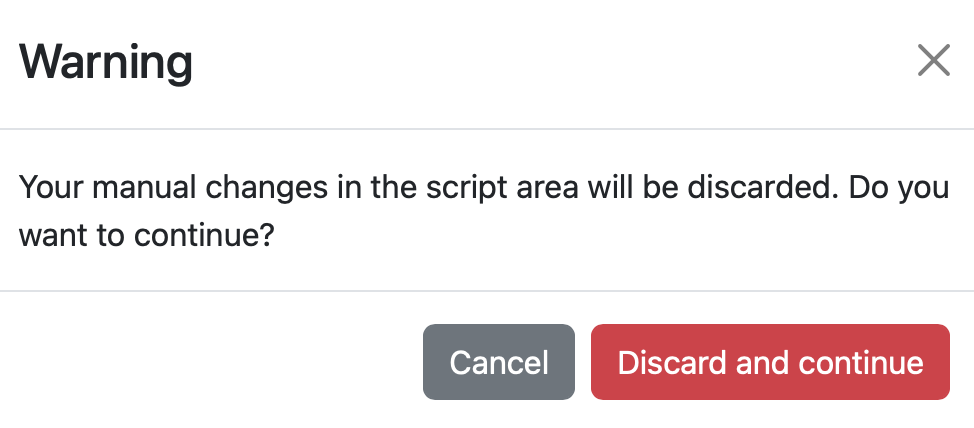
If you change the web form with a white background after manually editing the text area, the following warning appears. Clicking Discard and continue discards the changes you made in the text area.
Submitting a Job
Click Submit at the bottom of the text area to submit the job. On success, the path of the save location and a link to the History Page are displayed. Clicking the path of the save location opens the Open OnDemand Home Directory. Clicking the terminal icon next to the path opens Open OnDemand RIKYU Shell Access.

Viewing Job History
You can view the history of submitted jobs.

- The search box at the top right lets you find a specific job by filtering the job history by conditions. Clicking the Detail button enables searching with more detailed conditions.
- Clicking ▲ or ▼ in the table header sorts the entire table in ascending or descending order using that column as the key. The default is descending order by Job ID.
- Clicking the link in the Job ID column displays detailed information about the job.

- Clicking the link in the Application column opens the page for the corresponding application.
- Clicking the link in the Script Location column opens the Open OnDemand Home Directory. Clicking the terminal icon opens Open OnDemand RIKYU Shell Access.
- Clicking the link in the Script Name column displays the job script that was executed.

-
Clicking Load parameters opens the application page with the parameters that were used to create that job script loaded.
-
Select the target jobs using the checkboxes on the left side of the table and click Cancel Job to cancel queued or running jobs.
- Clicking Delete Info removes information about completed jobs from the table.
- Selecting the checkbox at the top of the table selects all jobs displayed on that page.